
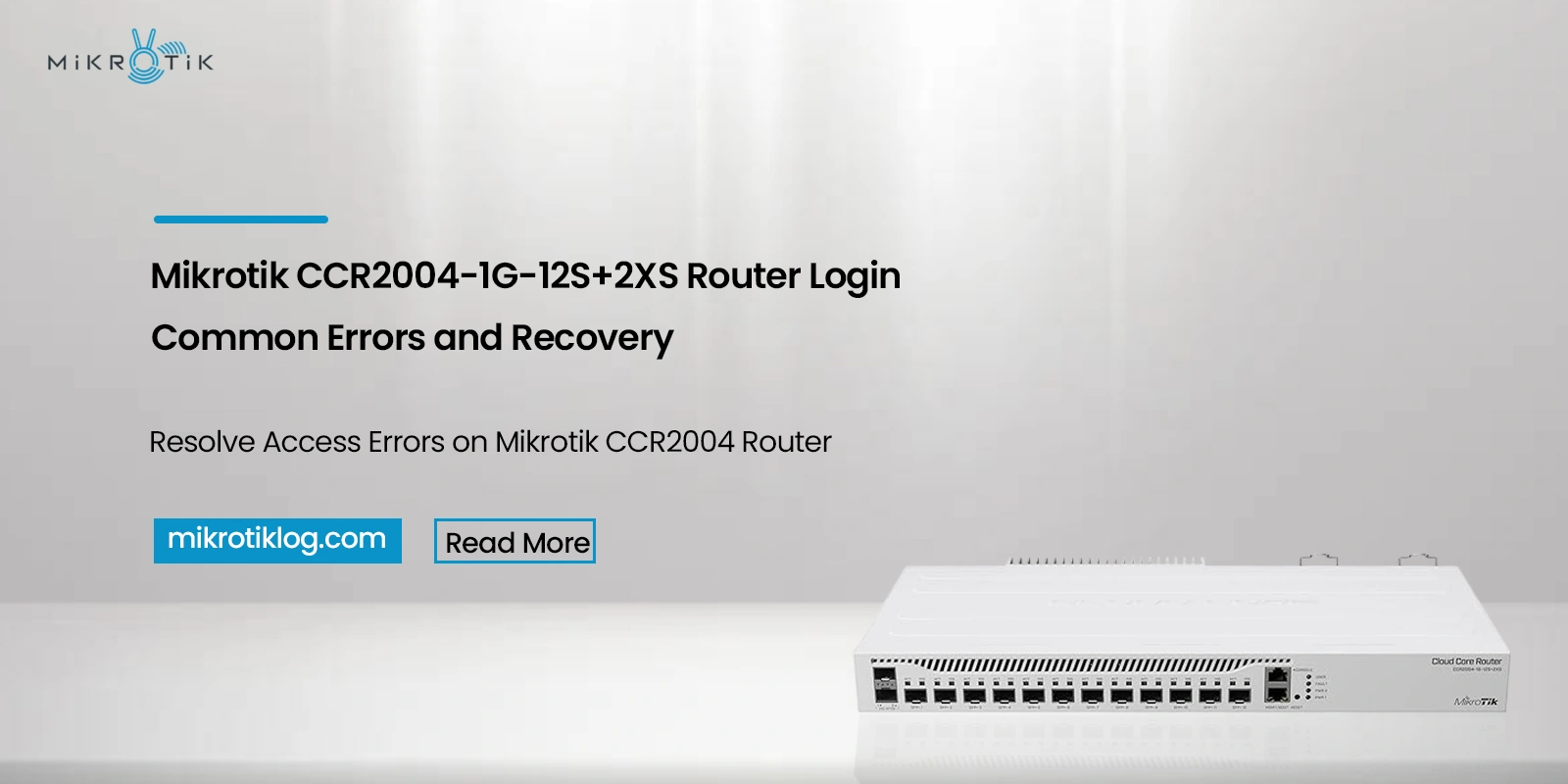
Enterprise-class routers function in a vastly different manner compared to consumer routers, and the CCR2004 is no exception in this aspect. Based on what MikroTik knows about router deployment in the market and adoption trends with Internet Service Providers, it can now be said that routers of the CCR class are commonly in use, not only at the ISP level, but in the enterprise environment as well, where multi-gig routers and predictable throughput are necessary, and the need to aggregate via SFP+ ports is a must. Due to this, the following problems arise in Mikrotik CCR2004-1G-12S+2XS Router Login.
Unlike residential routers, this infrastructure does not provide for browser access or offer the full range of control functions by default. Instead, RouterOS features complex layered access control that is very flexible yet strict if not fully comprehended. This guide provides simple and easy-to-follow steps for how to login to MikroTik CCR2004-1G-12S+2XS router.
Why Mikrotik CCR2004-1G-12S+2XS Router Login Is Different Than Others?
The MikroTik CCR2004 router login process reflects enterprise security principles rather than convenience. RouterOS treats management access as another service that administrators must explicitly allow, route, and secure.
From a technical standpoint, this means:
- You can bind management services to specific interfaces.
- Firewall rules can block login traffic entirely
- Access may exist at the MAC level but not the IP level
Because of this, many reported MikroTik CCR2004 router login issues are not authentication failures at all, but access-path failures.
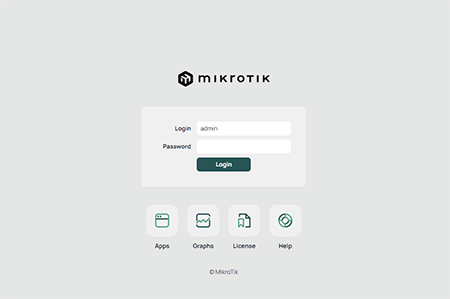
Conceptual Flow – How to Login to MikroTik CCR2004-1G-12S+2XS Router?
Before attempting any login to solve the MikroTik CCR2004-1G-12S+2XS login failed issue, it is important to understand how RouterOS expects administrators to connect. On a management level, there exist three layers: IP-based services, MAC-based discovery, and console-level access.
In practice, this means that even if Mikrotik CCR2004-1G-12S+2XS Router login fails in a browser, the router itself may well be fully functional and reachable through other means. It is an intentional and common construct within enterprise routing platforms.
MikroTik CCR2004-1G-12S+2XS Login IP Address Reality
Many guides assume a fixed IP for the MikroTik CCR2004-1G-12S+2XS login IP address. However, RouterOS does not enforce one unless configured. While 192.168.88.1 is commonly used after reset, that address may disappear entirely once the router is placed into a routed or VLAN-based environment due to which you may see MikroTik CCR2004 router login not working.
When users report MikroTik CCR2004 login page not loading, the root cause is often one of the following:
- The router is acting as a DHCP client
- The administrator moved the management IP to a different interface.
- The PC is on the wrong subnet
This is why IP discovery should never be assumed. In the following section, we will be solving MikroTik CCR2004 login page not loading issue.
Accessing the Mikrotik CCR2004-1G-12S+2XS Login Page via Web
This will only work if the HTTP or HTTPS service on the MikroTik CCR2004-1G-12S+2XS web login is enabled and passes through the firewall. This differs from consumer routers because RouterOS does not provide internet access to the browser.
In the case that the Mikrotik CCR2004-1G-12S+2XS login page does not open, the problem is always service-related, not related to the browser. It may involve input firewall rules, disabled services, or interface bindings.
MikroTik CCR2004-1G-12S+2XS Admin Login and Credentials
The MikroTik CCR2004-1G-12S+2XS admin login behavior depends on the router’s lifecycle stage. A factory-fresh device behaves very differently from a production router. You may even face MikroTik CCR2004-1G-12S+2XS login credentials, although the details are correct.
Typical scenarios include:
- First boot prompting credential creation
- Post-reset default admin user restored
- Custom roles restricting admin access
This is why MikroTik CCR2004-1G-12S+2XS login credentials may appear correct but still trigger permission-related errors.
MikroTik CCR2004-1G-12S+2XS Login via Winbox (Preferred Method)
As far as functionality is concerned, the most reliable method of login to the MikroTik CCR2004-1G-12S+2XS login via Winbox. This is because the Winbox tool is directly compatible with the Mikrotik CCR2004-1G-12S+2XS router login.
This technique will still work if:
- The login IP address is unknown
- You have disabled Web Services
- Firewall rules control the IP traffic
It is for this reason that Winbox is predominantly employed by ISPs and administrators whenever they face MikroTik CCR2004 router login not working issue.
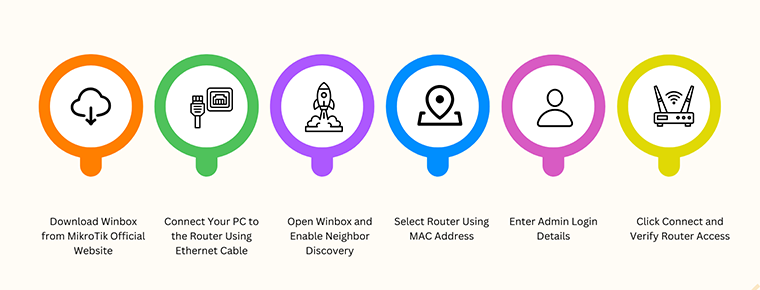
Step by Step Guide to MikroTik CCR2004 Router Login Using Winbox
When Mikrotik CCR2004-1G-12S+2XS Router login access becomes unreliable, the following step by step guide to MikroTik CCR2004 router login restores control in most environments:
- Download Winbox from MikroTik’s official site
- Connect a PC directly to the router via Ethernet
- Launch Winbox and allow neighbor discovery
- Select the router by MAC address
- Enter admin credentials
- Connect and verify access
This process resolves a large percentage of MikroTik CCR2004 cannot login to router.
MikroTik CCR2004 Login After Factory Reset
Doing a MikroTik CCR2004 login after factory reset may be the quickest solution if there is a physical lockout with no access at all. Resetting the device deletes firewall filters, resets services to the default setting, and activates discovery.
However, the reset feature during the Mikrotik CCR2004-1G-12S+2XS router login must be applied with caution in a production environment, because all settings would be lost in the event that a backup had not been performed.
Why Login Stops Working After Configuration Changes
Many MikroTik CCR2004 router login issues appear after firewall tuning or interface restructuring. RouterOS allows administrators to lock down management traffic aggressively.
Common missteps include:
- Blocking the input chain unintentionally
- Binding services to the wrong interface list
- Changing management ports without updating rules
These changes often produce MikroTik CCR2004-1G-12S+2XS login failed errors that look like authentication problems but are not.
MikroTik CCR2004 Password Reset for Login: Security Implications
In terms of security, it is noted that the only way for MikroTik CCR2004 password reset for login is by factory resetting. The RouterOS does not have the capability.
This design prevents attackers from stealing access, but it requires disciplined backup processes.
Advanced Login Errors and Their Meaning
Some MikroTik CCR2004-1G-12S+2XS login error messages indicate deeper system problems, such as:
- Corrupted RouterOS packages
- Failed firmware upgrades
- Storage or license inconsistencies
In these situations, Netinstall can solve the MikroTik CCR2004-1G-12S+2XS login error.
Best Practices After Successful Login
Once Mikrotik CCR2004-1G-12S+2XS Router login succeeds, access should be secured immediately.
Recommended actions include:
- Restrict management access to trusted interfaces
- Disable unused services
- Create role-based admin users
- Export and store configuration backups
These steps reduce the risk of future MikroTik CCR2004 cannot login to router incidents.
Final Thoughts
The Mikrotik CCR2004-1G-12S+2XS Router login and the MikroTik CCR2004-1G-12S+2XS web login process indicate the router’s enterprise intentions. This router’s design favors control, segregation, and security at the expense of simplicity. Although this limitation might seem quite daunting at the start, it actually offers predictability along with security.
By understanding RouterOS access layers, using Winbox effectively, identifying the correct login IP address, and knowing when resets are appropriate, administrators can avoid most MikroTik CCR2004 router login issues and manage the device with confidence.