
MikroTik Router Not Working? Causes, Fixes, and Easy Solutions
When your Mikrotik Router Not Working, it can ruin a day very quickly. Internet issues can be stressful, whether one is working from home, attending online classes, or streaming content. Even though MikroTik routers are highly resourceful and robust, they may experience problems as a result of configuration mistakes, upkeep, or adjustments in the network.
Thus, the most important step will be to know the reason why MikroTik router is not working. One should not guess or simply change settings, but adhere to a definite plan to save time and additional troubles.
Here you will learn how to fix MikroTik router not working, find out common troubles and implement effective solutions based on a step-by-step MikroTik troubleshooting guide that will be easy to follow- even by a beginner.
Common Signs of a MikroTik Router Not Working
To begin with, a router problem does not always look the same. In fact, users experience different symptoms depending on the cause. For example, you may notice:
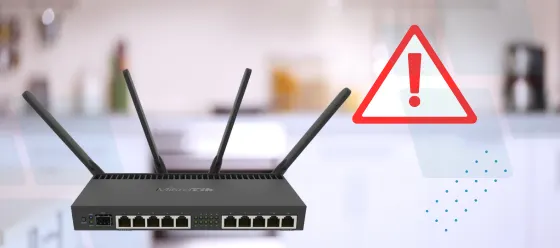
- Firstly, the MikroTik router not responding when trying to log in
- Next, the MikroTik router connected but no internet
- Then, the MikroTik router no internet issue after reboot
- Additionally, MikroTik router slow internet issue
- After that, the Mikrotik router not connecting to internet
- Moreover, the Mikrotik router not connecting to devices
- Finally, can’t connect to the MikroTik router at all
As a result, identifying which symptom you are facing helps narrow down the exact MikroTik router problem faster.
Why MikroTik Router Is Not Working
Before applying fixes, it is important to understand the possible reasons. Usually, a MikroTik router not working issue happens due to one or more of the following reasons:
- Incorrect or incomplete configuration
- Firmware update problems
- Power interruptions or sudden shutdowns
- ISP-related network changes
- Overheating or long uptime
- Accidental reset or misapplied rules

Therefore, instead of assuming hardware failure, it is better to follow structured MikroTik router troubleshooting steps.
Basic Checks to Perform First
First of all, do not rush into advanced settings. Instead, start with simple checks that often solve the issue immediately.
Basic Checks to Perform First
Firstly, confirm that the router is receiving power. Then, check all Ethernet cables connected to the WAN and LAN ports. A loose or damaged cable can easily cause a MikroTik router connection issue.
Check Router Lights
Then watch the indicator lights. In case the lights are not on, it means that the router is not on. But when the lights are blinking abnormally, it can be a sign ofa software or configuration issue.
MikroTik Router Connected but No Internet
One of the most common complaints is MikroTik router connected but no internet. In this case, devices connect successfully, but websites fail to load.
This usually happens because:
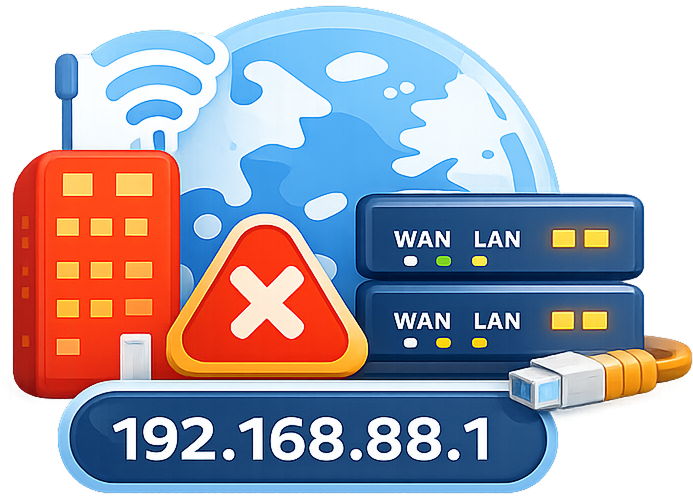
ISP service is temporarily down (192.168.88.1).
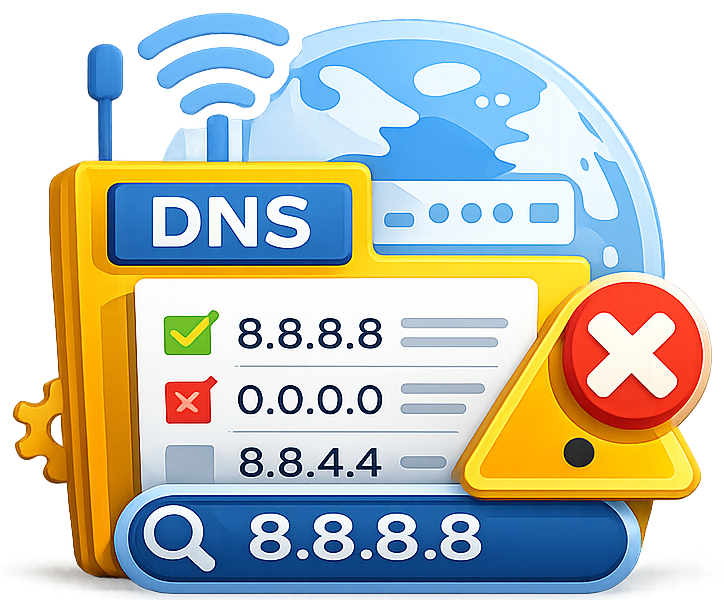
DNS settings are missing or incorrect.
Firewall rules block outgoing traffic.
Therefore, try the following MikroTik router internet issue fix:
- Firstly, restart the modem
- Then, restart the MikroTik router
- After that, wait 2–3 minutes
- Finally, test the internet again
In many cases, this simple approach restores the connection.
Reboot MikroTik Router Fix (Recommended First Step)
In many situations, a Reboot resolves temporary glitches. Therefore, a Reboot MikroTik router fix should always be your first action.
To reboot:
- Log in to the router (if accessible)
- Click on Reboot
- Wait for the router to fully restart
Alternatively, power off the router, wait 30 seconds, and turn it back on.
As a result, memory clears, and background processes reset.
MikroTik Router Not Responding to Login
If your MikroTik router not responding, you may not be able to access the web interface or WinBox.
This problem can happen because:
- The IP address was changed
- Firewall rules block access
- The router froze due to long uptime
In that case:
- Try connecting via Ethernet
- Use WinBox neighbor discovery
- Restart the router
If access is still blocked, resetting may be required.
Reset MikroTik Router (Careful but Effective)
When other methods fail, a Reset MikroTik router may be necessary. However, this step removes all custom settings.
Basic Checks to Perform First
- Firstly, power off the router
- Next, press and hold the reset button
- Then, power on while holding reset
- Finally, release when the LEDs blink
After this, the router returns to default settings.
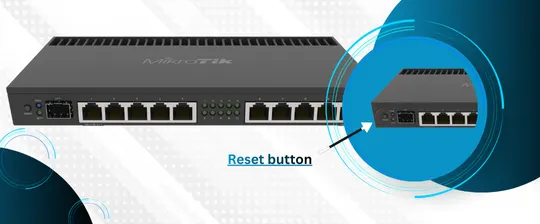
However, many users face MikroTik router not working after reset because the required settings are missing.
MikroTik Router Not Working After Reset
If your router still does not work after resetting, do not panic. This usually happens because:
Therefore, after reset, you must:
- WAN interface is not configured
- IP addressing is missing
- DNS servers are not set
- Assign an IP to the LAN
- Configure the WAN interface
- Add DNS servers
Following a step-by-step MikroTik troubleshooting guide prevents mistakes during reconfiguration.
MikroTik Router No Internet Issue After Reset
Another common problem is a MikroTik router no internet issue right after reset. Although the router powers on, internet access fails.
To fix this:
- Verify WAN interface status
- Confirm ISP connection type
- Set the correct gateway
As a result, internet access usually returns quickly.
MikroTik Router Slow Internet Issue Explained
There are also cases when the router is working, and the speed is extremely low. Then, it will be a MikroTik router slow internet problem and not a complete failure.
Common causes include:
- Bandwidth limits applied
- Outdated firmware
- Heavy firewall rules
Therefore:
- Check queues and limits
- Update firmware
- Remove unused rules
As a result, performance often improves immediately.
Fix MikroTik Router Not Working After Update
Firmware updates are important, but they can sometimes cause issues. Therefore, many users search for fix MikroTik router not working after update.
To fix this:
- Reboot the router
- Roll back the firmware if possible
- Reset and reconfigure if needed
Always back up settings before updating to avoid future issues.
Understanding MikroTik Router Error Messages
If you see a MikroTik router error, it usually provides a clue about what is wrong.
Common errors include:
- Interface down
- DHCP failed
- Authentication error
Therefore, checking system logs helps identify the root cause quickly.
MikroTik Router Not Connecting to Internet
If your MikroTik router not connecting to internet, even after reboot and reset, check the following:
- WAN IP address assignment
- Gateway configuration
- DNS resolution
Often, a missing or incorrect gateway causes this problem.
MikroTik Router Not Connecting to Devices
If devices fail to connect, users often report:
- Mikrotik router not connecting
- Can’t connect to MikroTik router
In such cases:
- Verify WiFi security type
- Restart the wireless interface
- Change the WiFi channel
As a result, devices usually reconnect successfully.
MikroTik Router Issues Explained with Symptoms, Causes, and Fixes
Visible Symptom
Likely Cause
What It Means
Recommended Fix
Router powers on, but no internet
WAN not configured
The router is running, but the ISP connection is missing
Configure the WAN interface and gateway
Router connected, but no internet
DNS or firewall issue
Traffic is blocked, orthe DNS is not resolving
Set DNS servers and review firewall rules
Router not responding to login
IP changed or blocked
Admin access is restricted
Use WinBox neighbor discovery
The Internet is very slow
Bandwidth limits enabled
Speed is being throttled
Check queues and remove limits
The router stopped working after the update
Firmware conflict
Update failed or incompatible
Reboot, rollback firmware, or reset
Router not working after reset
Default config missing
The router is blank with no routing
Reapply the default config and WAN setup
Devices connect but drop often
Wireless interference
The signal is unstable
Change the WiFi channel and placement
No lights on the router
Power issue
Router not receiving power
Check the adapter and the power outlet
Can’t connect to MikroTik router
Firewall blocking access
Admin ports restricted
Temporarily disable firewall rules
Advanced MikroTik Router Troubleshooting Steps
If basic fixes fail, follow these advanced MikroTik router troubleshooting steps carefully:
- Firstly, check the interface status
- Next, verify IP addresses
- Then, test DNS resolution
- After that, review firewall rules
- Finally, inspect the routing table
Although these steps sound technical, taking them one by one makes the process manageable.
How to Fix MikroTik Router Not Working (Quick Summary)
If you are wondering how to fix MikroTik router not working, follow this order:
- Check power and cables
- Reboot router
- Check ISP connection
- Reset if needed
- Reconfigure correctly
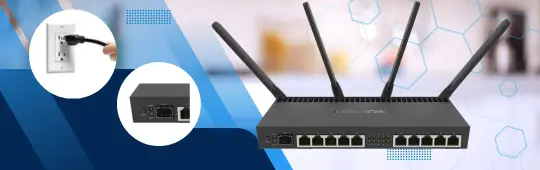
By following this sequence, most MikroTik router problem cases are solved.
Mikrotik Router Not Working? What to Do Next
If you are still asking Mikrotik Router Not Working? What to do, slow down and recheck each step.
Avoid:
- Repeated resets
- Random setting changes
- Skipping configuration steps
Instead, follow a calm, structured approach. Often, patience fixes what rushing breaks.
Final Thoughts
To sum up, a MikroTik router not working, does not necessarily imply that the router is defective. As a matter of fact, settings, updates or network changes are the leading cause of most of the problems. Is it MikroTik router no internet issue, MikroTik router connected but no internet, or MikroTik router not responding? Then, by taking the correct steps, one can make everything work out again.
Through this step-by-step MikroTik troubleshooting guide, having the appropriate MikroTik router internet issue fix and knowing why MikroTik router is not working, you will be able to retrieve your network with a lot of confidence without having to go through undue stress.
FAQs
Usually due to power cuts, updates, or configuration changes.
Restart first, then reset if needed.
DNS, gateway, or ISP issues are common causes.
DNS, gateway, or ISP issues are common causes.
Only after reboot and basic troubleshooting fail.