

MikroTik Router Setup Step-by-Step Guide You Can Follow
MikroTik is a popular brand which is known for its powerful and reliable router devices. These routers are increasingly used for both home and business networks. If you have updated to a new MikroTik router, learning how to complete the Mikrotik router setup process is important.
MikroTik router configuration can seem challenging, but with the right information and steps, it can be an easy process. On this page, we will guide you through the MikroTik router setup login process. We will cover router configuration, login, and some easy steps to resolve related router networking issues in easy steps. This page will thus serve as your MikroTik router setup guide to help you get your router working quickly.
MikroTik Router Setup- What’s Needed?
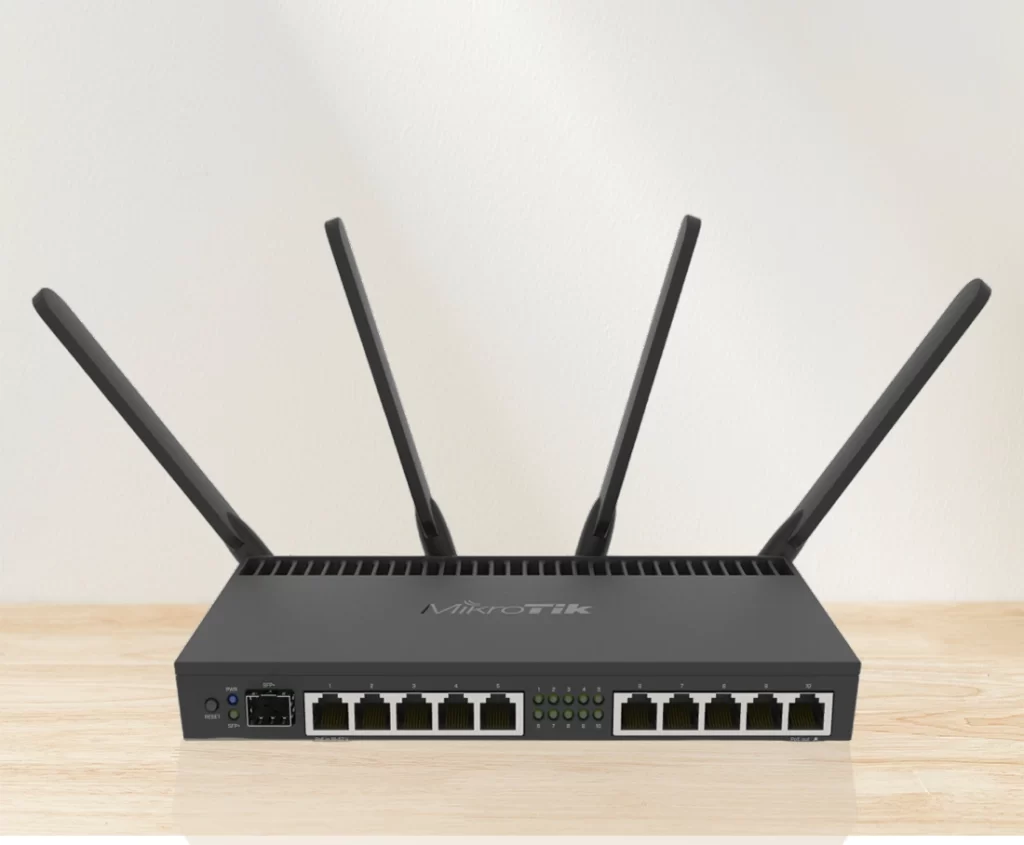
Before you begin the setup process, make sure you have the necessary equipment ready. This includes Ethernet cables, the MikroTik router, and the modem. In addition to these items, you will also need access to some additional details like:
- local network SSID and Password,
- default IP address for router
- the PPPoE details from ISP(Internet Service Provider),
- a compatible web browser,
- the WinBox software installed on your computer,
- and an active internet connection.
The default setting details can be found on the product label or in the user manual that arrives with the package. For a quick reference, here are the default logins for MikroTik router you can use-
MikroTik Router IP address: 192.168.88.1
Username: admin
MikroTik Router Setup Login Password: *leave the field blank*
If you want to use your smartphone or other wireless device, you can install the MikroTik mobile app for logging in and setting up.
MikroTik Router Setup Guide
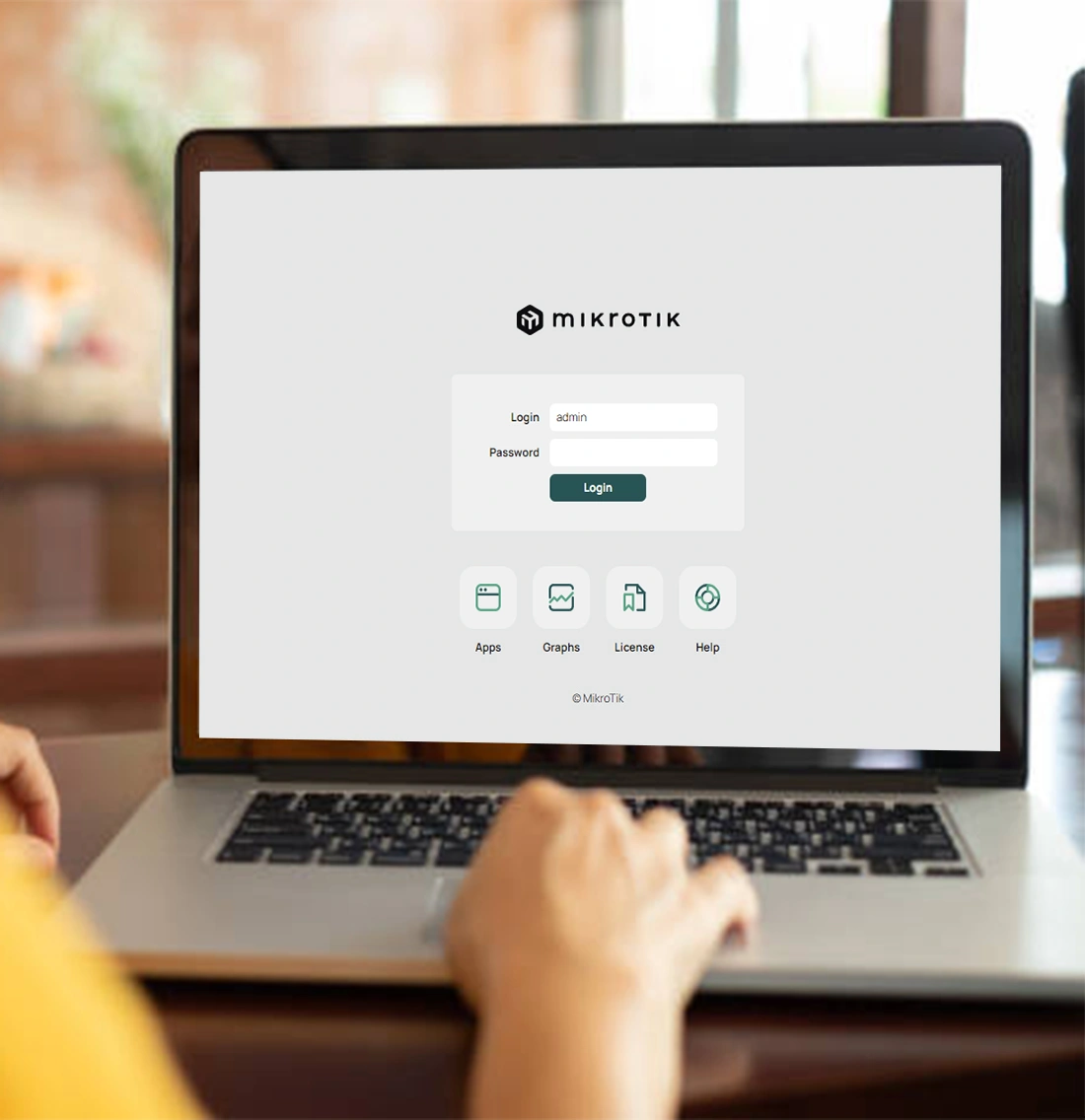
The first step in setting up a MikroTik router is to access the MikroTik router setup wizard through a web browser. Here’s how to access MikroTik router setup page:
- Connect your computer or device to the MikroTik router with an Ethernet cable or by joining the router's wireless network.
- If you don’t have the WinBox tool installed, download and install it from the official website.
- Open the WinBox software on your computer. Enter the default IP address of the MikroTik router in the "Connect To" field. This address is usually "192.168.88.1" or "192.168.1.1." However, it may change based on the specific model and configuration. In the Login field, type admin and leave the password field empty.
- Click the Connect button now. You will be taken to the MikroTik Router Setup Wizard.
How to setup MikroTik router?
Once you are on the MikroTik router setup page, you will need to enter the default username and MikroTik router setup login Password to log in. The default username is “admin”, and the default password is usually blank or “admin”. It is essential to change the default password for security reasons. After logging in, you can follow these steps to complete the MikroTik router configuration:
- The first step in MikroTik router setup is to configure basic settings. This includes setting the time zone, the hostname, and a password for the router’s administrative access. You can also set the router’s IP address and subnet mask in the “IP” menu.
- If you are setting up a MikroTik router as an access point, you need to configure the wireless settings. You can set the wireless network name (SSID), password, encryption method, and other wireless settings in the “Wireless” menu.
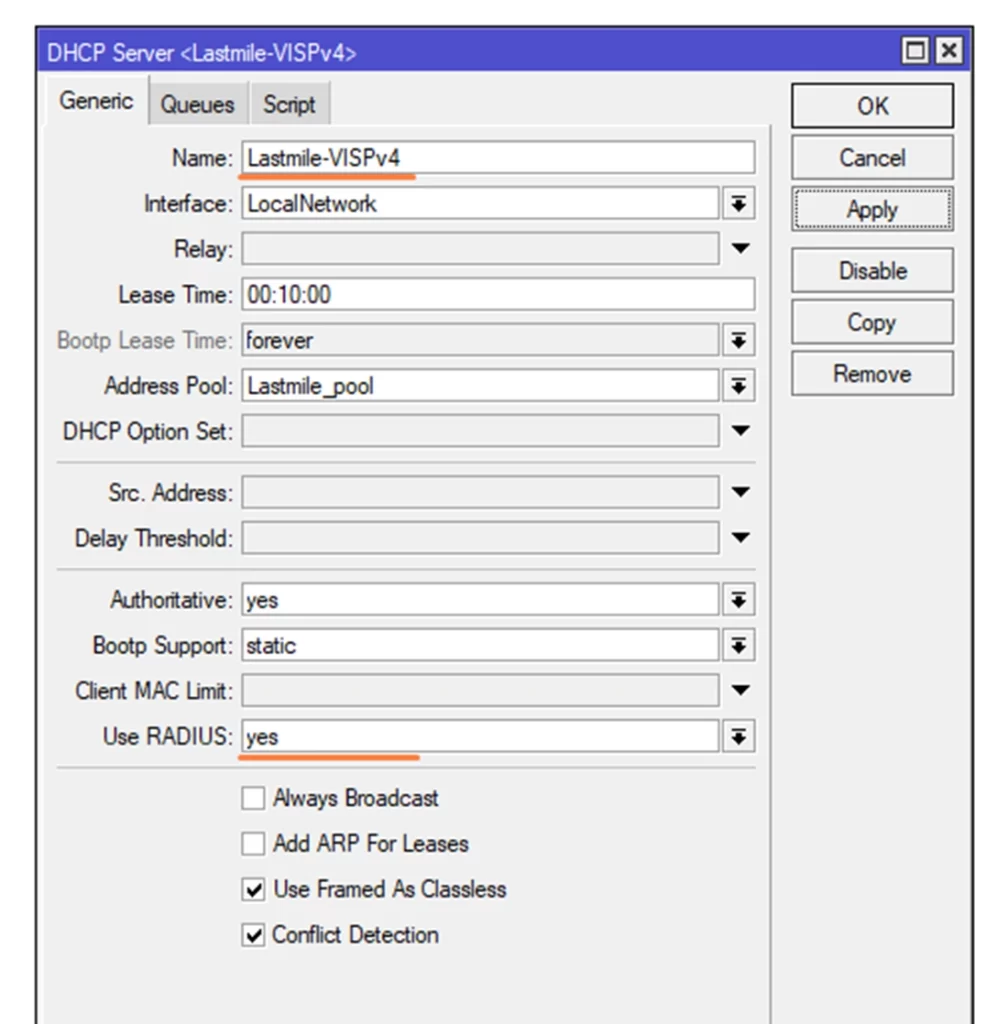
- You can set up the router’s LAN (Local Area Network) and WAN (Wide Area Network) settings in the “IP” menu. This includes configuring IP addresses, subnet masks, DHCP (Dynamic Host Configuration Protocol), and NAT (Network Address Translation).
- Configuring the firewall is important for securing your MikroTik router and network. You can create firewall rules to manage incoming and outgoing traffic, set up port forwarding, and adjust other security settings in the “IP” and “Firewall” menus.
Modifying the MikroTik Router Settings
MikroTik router configuration includes many settings and options. These settings let you customize the router to meet your network needs. Here are some key configurations you might consider:
- You can set up IP addresses for LAN and WAN interfaces. You can also establish static IP addresses and configure DHCP settings to automatically assign IP addresses to devices on your network.
- Th network settings can be modified as well. This includes SSID, password, encryption, and other wireless settings. You can also configure multiple Mikrotik access points for improved coverage.
- Settings like the routing protocols can be edited in addition to configuring static routes, etc. Moreover, you can set up network address translation (NAT) to manage traffic between different networks.
- Configuring firewall rules is vital for network security. You can set up firewall rules to control incoming and outgoing traffic, manage port forwarding, and adjust other security settings.
- You can set up QoS settings to prioritize specific types of traffic, like voice or video, to improve performance.
- Users can also set up VPN (Virtual Private Network) connections to protect remote access to your network. You can also connect several branch offices.
Accessing MikroTik Router OS
MikroTik routers use RouterOS. This is a strong operating system that offers many features and settings. Accessing RouterOS allows you to gain more control over your MikroTik router. Here’s how to access the MikroTik RouterOS:
- Open the MikroTik router setup login page in your web browser by entering the router's IP address.
- Enter your login details, including the username and password.
- Once you log in, you can access the RouterOS command line interface (CLI) or the graphical user interface (GUI). These tools allow you to configure settings, run commands, and monitor the router's performance.
FAQs
If you cannot log in to your MikroTik router, you can use the default credentials (admin and a blank password) through Winbox with the MAC address. This will help you avoid any IP issues. You can also connect with an ethernet cable to the LAN port, not the WAN port. If you are still having trouble, reset the router to factory settings. Hold the Reset button for about 10 seconds while powering it on until the LED flashes. This will restore the default settings. If necessary, you can use Netinstall for a complete reinstall of RouterOS.
You can start by restarting your router. Once restarted, check the default IP address (192.168.88.1) and the login details (admin/no password). For ongoing problems, update Router firmware, restart your modem, check the physical connections, and verify the firewall/NAT rules for specific issues like port forwarding. If nothing works, reach out to MikroTik support or community forums. Make sure to provide detailed setup information and a support output file.
MikroTik setup may fail because of incorrect IP settings, especially when trying to access the WAN port. Other issues can include firewall blocks, physical connection problems like bad cables or ports, and modem compatibility issues; try power cycling the modem first. Common fixes are using Winbox by connecting via MAC address if the IP doesn’t work, resetting to factory defaults, checking cables and ports, power cycling the modem or router, making sure the IP and DHCP settings are correct, and verifying firewall rules.
If your MikroTik setup is stuck, first try a hard reset. Hold the reset button while powering on for 5 to 10 seconds until the LEDs flash. Then connect directly and use Winbox via MAC address. If that doesn’t work, use Netinstall to reinstall RouterOS. Make sure you have a direct Ethernet connection, usually on port 1. Run the program as an admin and disable other network interfaces to recover your device from a frozen state.
You can inspect the LAN cable connections. Ensure that the cable is connected to the right port. If you are using a wireless connection, ensure you are connected to the private network of the MikroTik router only. If that does not help, try checking the router settings online. You will need to ensure that the settings are configured correctly and you can connect to the internet easily. If not, you can follow the troubleshooting steps discussed on this page.
If you run into issues while setting up your MikroTik router or if you have forgotten the login details, you might need to reset the router to its factory default settings. Here’s how to do it:
- Locate the reset button on the MikroTik router. It is usually a small hole found on the back or bottom of the router.
- Use a paperclip or pin to press and hold the reset button for about 10 seconds. Wait until the router’s lights start flashing or the router reboots.
- Once the reset process is complete, you can access the MikroTik router login page again using the default username and password. Then, you can start the setup process from the beginning.
Resetting the MikroTik router login username and password is easy using the setup wizard. You can use the reset button for this purpose. Press and hold the button till the router reboots and proceed with the MikroTik router config again. Alternatively, you can always access the MikroTik router setup wizard and change the username and password settings from the router administration wizard.
Configuring a MikroTik router will require you to connect through WinBox, which is recommended. Alternatively, you can use a web browser to access its default IP, usually 192.168.88.1. Start with the Quick Set for basic home access point setup, including WAN, WiFi, and password settings. After that, fine-tune your configuration by adjusting IP settings under DHCP Client, setting up a Bridge for LAN ports, and configuring Wireless settings like SSID and security. Make sure to set a strong admin password. Use IP settings under DHCP Server to assign IP addresses to devices automatically.
If your MikroTik router has no internet after setup, check the physical cables. Reboot the modem and router. Make sure DHCP, Static IP, or PPPoE settings are correct. Confirm that you have a default route in IP > Routes and NAT rules in IP > Firewall > NAT for internet access. If you are still having issues with the internet connection, performing a factory reset and using the Quick Set configuration can be the next steps.
Setting up and configuring a MikroTik router can seem complex. However, with the right knowledge and steps, it can be manageable. In this guide, we cover the MikroTik router setup process. This includes how to reset the router, configure it, and access the MikroTik RouterOS.
By following the steps on this page and adjusting the router’s settings to fit your network needs, you can improve the performance and security of your MikroTik router. Always use strong and unique login details, keep your router’s firmware updated, and regularly check and modify your network settings for the best performance and security.